

Open the portal
The organiser portal is at organiser.hobbylux.app. It works on a phone and on a computer. On hobbylux.app, the page “For organisers” links to it: Open the organiser portal.
Use the email address HobbyLux knows for your market: the same address as on your emails from HobbyLux, or the one you gave in the “Add your market” form.
Get a code by email
- Type your address in Your email.
- Tap Send me a code.
- Open the email from no-reply@hobbylux.app. It holds a 6-digit code.
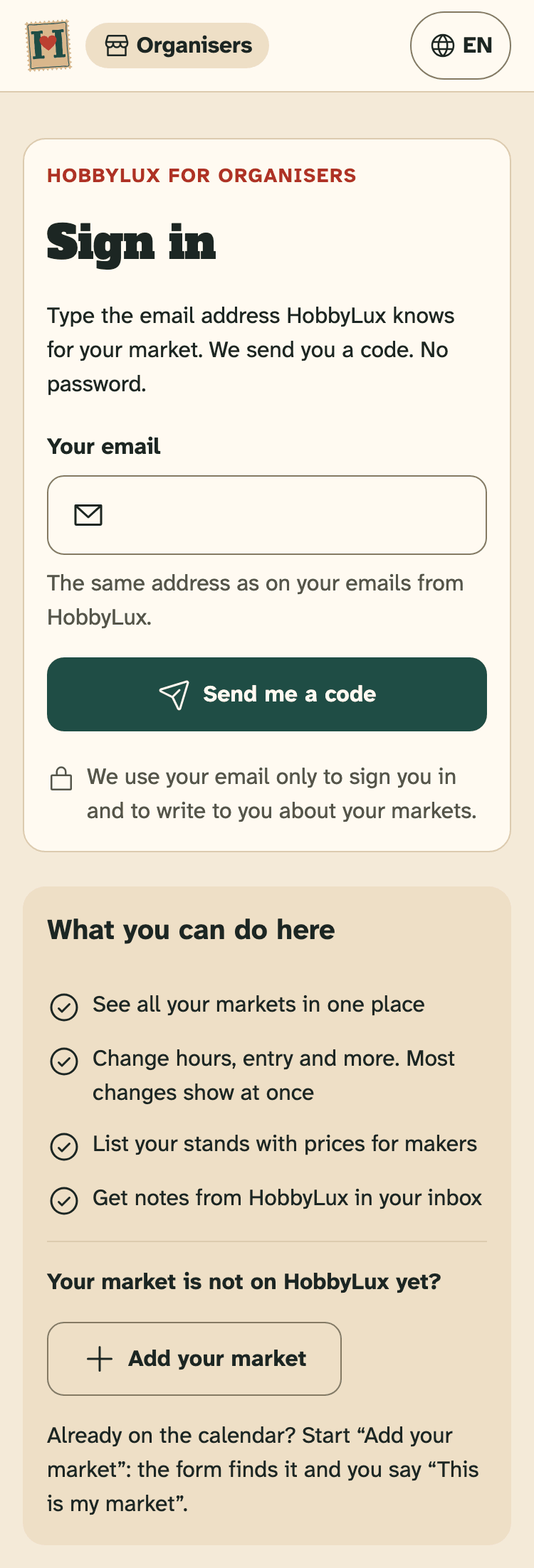
- Your email: the address HobbyLux knows for your market
- Send me a code
- Add your market: for a market that is not on HobbyLux yet
Every address gets a code. If no market is linked to it yet, the portal shows “No markets yet”. See Find your market, or add it.
Type the code
- Type the 6 digits in Code from the email. Pasting the code works too.
- Tap Sign in.
- The portal opens My markets.
The code works for 10 minutes. If you ask for a new code, only the newest code works.
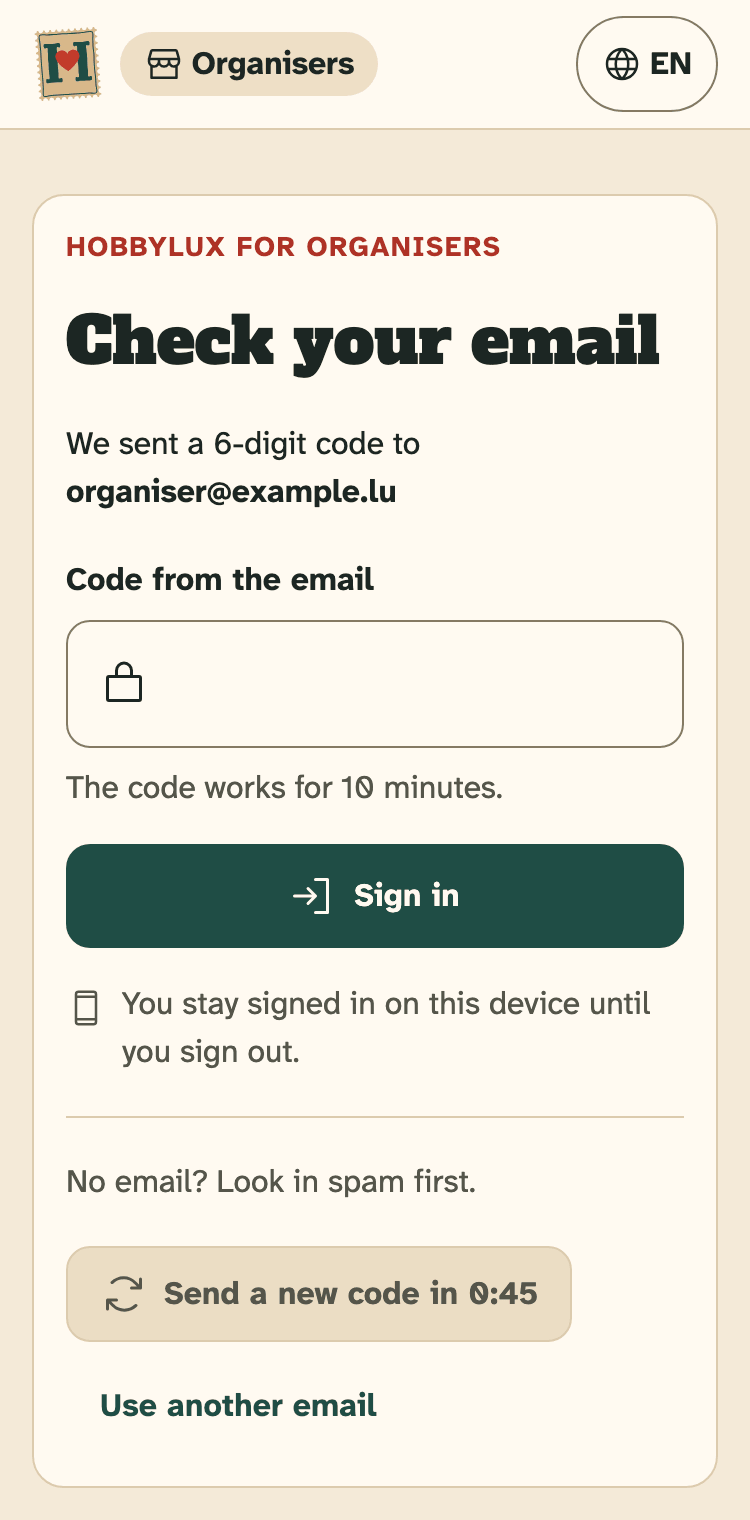
- Code from the email
- Sign in
- Send a new code: possible after one minute
- Use another email: if you typed the wrong address
No email, or the code does not work
- Look in your spam folder first.
- After one minute you can tap Send a new code. Then use the code from the newest email.
- Typed the wrong address? Tap Use another email and start again.
- “This code does not work” means: check the newest email, or send a new code.
Still no email? Check that you use the address HobbyLux writes to about your market, or write to hello@hobbylux.app.
Stay signed in, or sign out
You stay signed in on this device until you sign out. On a shared computer, always sign out: open Account and tap Sign out.
If the portal says “You are signed out”, sign in again with a new code.
Your email address and your language
Account shows the email address of your account. We send your sign-in codes and our emails there. Need another address? Write to hello@hobbylux.app.
To change the language, use the language button in the top bar, or “Language” in Account. Your choice is for this portal and the emails we send you. It is saved at once.
Delete your account
In Account, tap Delete my account, then Yes, delete my account. Your markets stay on the calendar and HobbyLux looks after them again. Your stand offers, payment notes and your email are deleted. This cannot be undone.
Still stuck? Write to hello@hobbylux.app