

Add a market
- Open Where I will be in the menu.
- In the card “Add”, type the name of the market or the town.
- Find the market under From the calendar.
- Press Add next to it.
It is saved at once. The market now shows in the list “Your markets”.
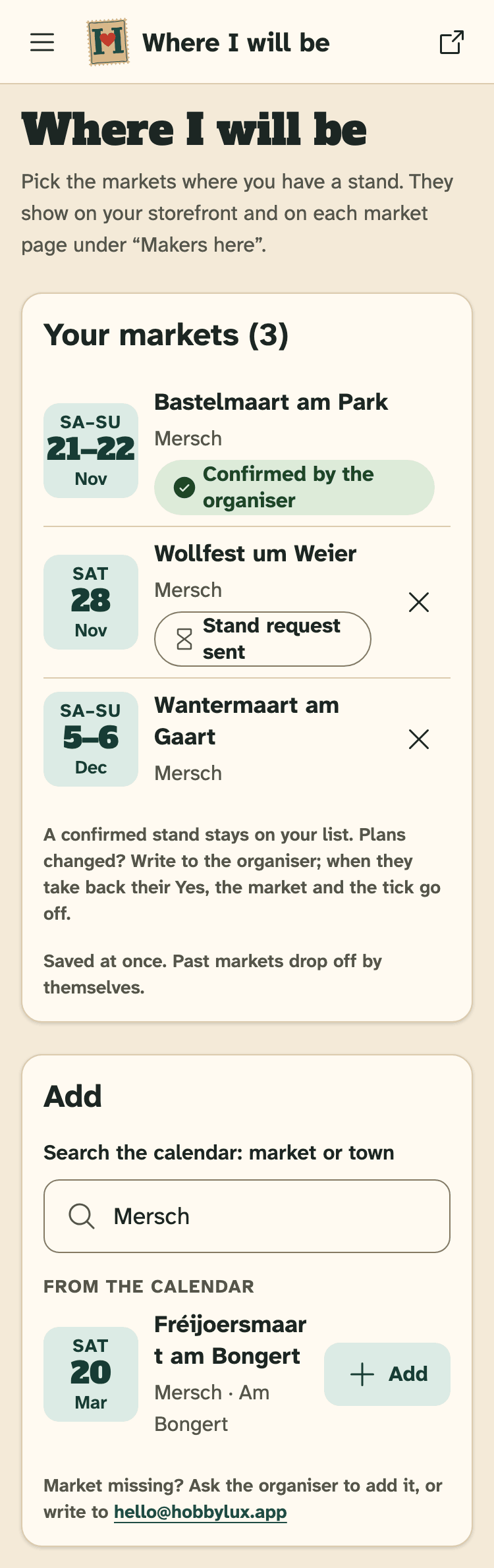
- Your markets, the next one first.
- Confirmed by the organiser: a stand the organiser said Yes to.
- Search the calendar: market or town.
- Add: puts the market on your list.
Adding a market here does not book a stand. It only tells visitors you will be there. To get a stand, ask the organiser: see Ask for a stand.
Remove a market
Press the cross next to the market in “Your markets”. It is saved at once.
Past markets drop off by themselves. You do not need to remove them.
Markets with “Confirmed by the organiser”
When an organiser says Yes to your stand request, the market goes on your list with a tick and “Confirmed by the organiser”. On a market that takes the stand payment online, the tick comes once you have paid.
A confirmed market has no cross: it stays on your list. Plans changed? Write to the organiser. When they take back their Yes, the market and the tick go off. See Cancel a stand.
A market you asked a stand for shows “Stand request sent” until the organiser answers.
Where visitors see your markets
Your markets show on your storefront under “Next markets”, the next one first. They also show on the page of each market, under “Makers here”.
“Makers here” lists verified makers only. Until your storefront is verified, your markets show on your storefront only. See Verified badge.
Market missing?
The search shows upcoming markets from the HobbyLux calendar. No match? Try the town name.
Still missing? Ask the organiser to add it to HobbyLux, or write to hello@hobbylux.app.
Still stuck? Write to hello@hobbylux.app