

Your name, texts and links
Open Storefront in the menu. In the card “Name and craft” you change your stand name, what you make, your town, the language of your texts and the text about you.
Under Links you can add your website, Instagram, Facebook and one online shop. Only these four: no email or phone number, because visitors meet you at the stand.
Press Save the storefront. On a live storefront, changes show as soon as you save.
Your page address stays the same when you change your stand name, so links you shared keep working.
Write your texts in the language you like. We do not translate them. Pick that language under Language of your texts, so screen readers read your texts right.
Your photos
The card “Your photos” has two photos: the profile photo (you, or your hands at work, shown in a circle) and the cover photo (a wide photo, for example your stand). The cover photo is optional.
Press Add a photo or Change photo. A photo is saved as soon as its upload is done.
Photos can be JPG, PNG or WebP, up to 10 MB. HEIC photos from an iPhone do not work yet: on the iPhone, choose Settings › Camera › Formats › Most Compatible.
Under Describe the photo, write a few words for people who cannot see it. If you leave it empty, we use the name.
We remove location data from your photos. Remember the house rules: no indecent or unsuitable photos. HobbyLux can hide a photo that breaks them; it then shows “Hidden by HobbyLux”.
Add a product
- Open Products in the menu.
- Press Add a product.
- Add a photo. Every product needs one photo you took yourself.
- Give it a name. A short text is optional: what it is made of, sizes, colours.
- Add a price if you like.
- Press Save product.
Saving puts the product on your storefront at once. Visitors buy at your stand, not online: HobbyLux takes no orders.
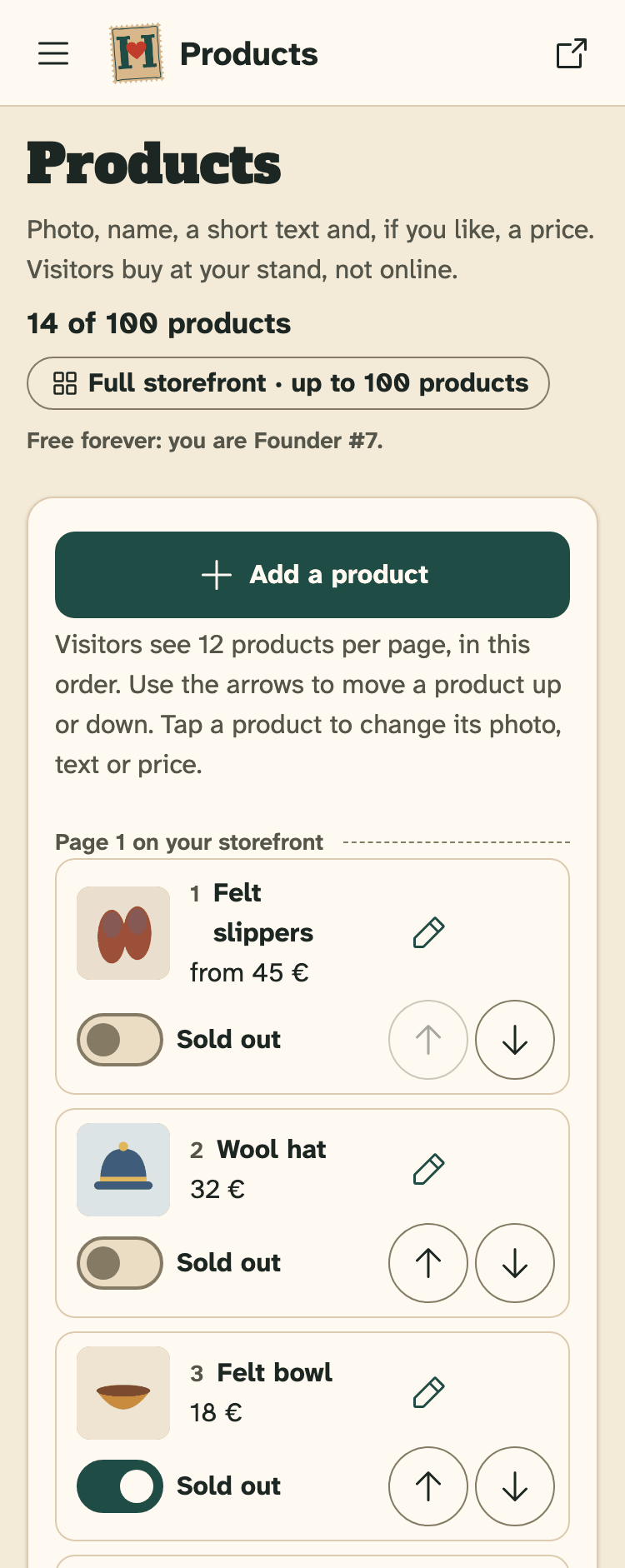
- How many products you have, and how many your plan allows.
- Add a product.
- Sold out: one tap, saved at once.
- Move up and Move down: change the order.
How many products you can show depends on your plan. See Free plan and Founder offer.
Prices and “from” prices
The price is your own price at the stand, in euros. Write it like 25 or 12.50, up to 9,999 €. Leave the field empty to show no price.
For a product in several sizes or colours, switch on “from” price. Your storefront then shows “from 45 €”, for example. The switch works only when there is a price.
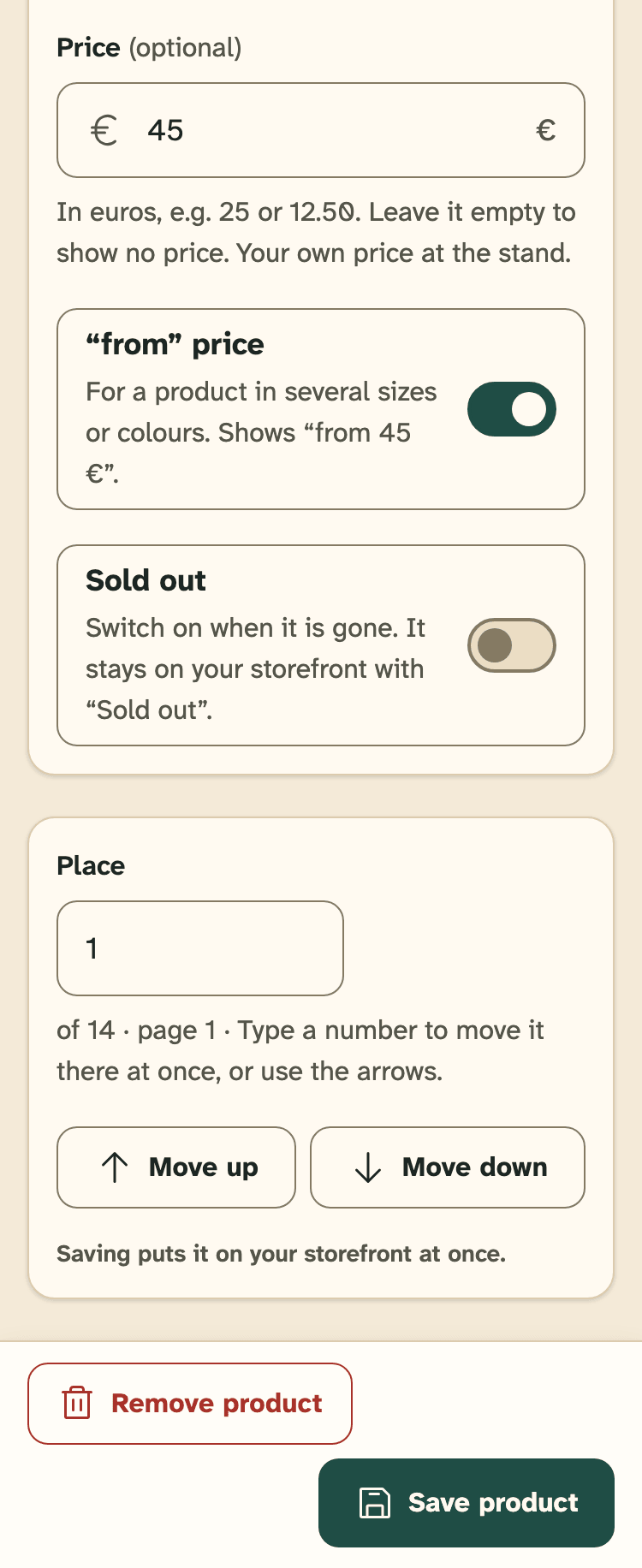
- Price: your price at the stand, in euros.
- “from” price: for several sizes or colours.
- Sold out: switch it on when the product is gone.
- Save product.
Sold out
Sold out? Switch on Sold out in the list, or on the product page. The product stays on your storefront with “Sold out”, and the price stays. In the list the switch is saved at once.
Made a new one? Switch Sold out off again.
Change the order
Visitors see 12 products per page, in the order of your list. The list shows which products are on page 1, page 2 and so on.
Use the arrows Move up and Move down in the list. Or open a product and type a number under Place: it moves there at once.
Remove a product
Open the product and press Remove product. Then press Yes, remove it. The product and its photo are gone from your storefront.
Only gone for now? Use Sold out instead. Then visitors still see what you make.
Still stuck? Write to hello@hobbylux.app