

What shows at once, and what we check
Open My markets, tap your market and go to “Market details”. It has two groups:
- “Changes that show at once”: opening hours, indoor or outdoor, entry, and cancelling. They are on your market page as soon as you save.
- “Changes we check first”: a new place, new days, the name, the type, the organiser or the official page. Your page keeps the old details until we approve, usually within a few days.
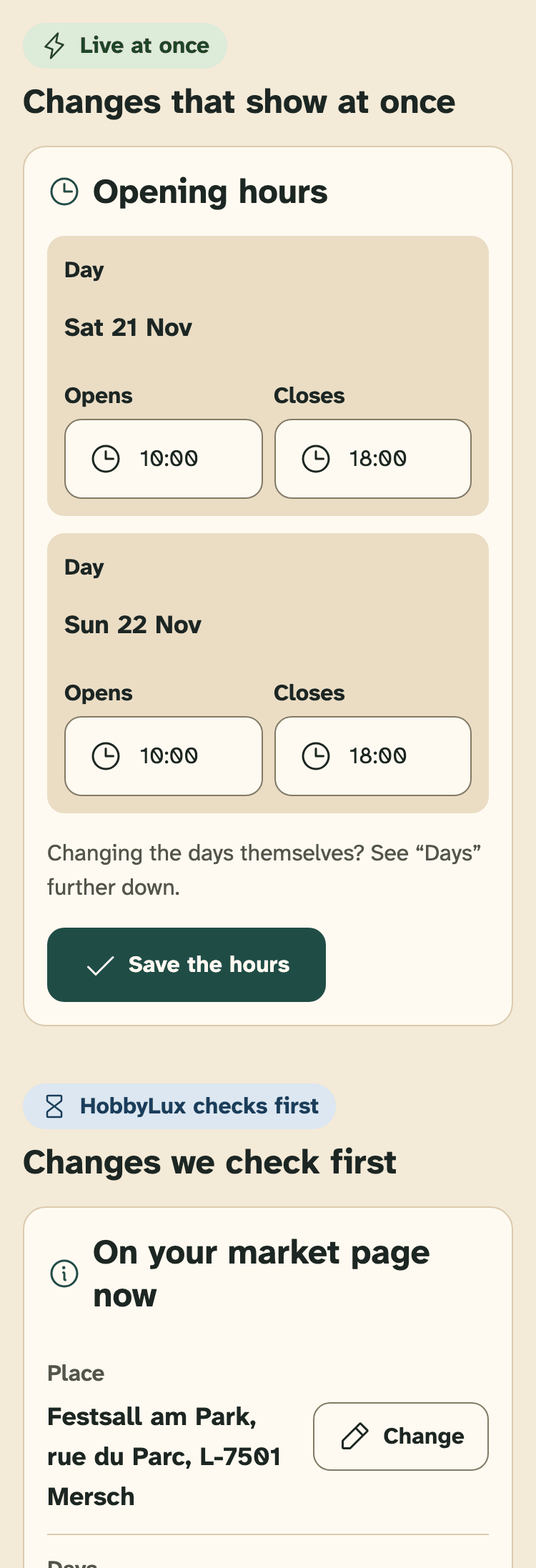
- Live at once: these cards save straight to your market page
- “Opening hours”
- HobbyLux checks first: these changes wait for our check
- Change: next to each line you can ask to change
Once a market is over, changes are closed.
Change the opening hours
- In “Opening hours”, each day of the market has its own line.
- Type the new time in Opens and Closes, like 14:00.
- Tap Save the hours. The new hours are live at once.
Want to add, remove or move a day? That is a change of the days: see New days, a new place or a new name.
Indoor or outdoor, and entry
- In “Indoor or outdoor · entry”, pick Indoor, Outdoor or Both.
- Under Entry, pick Free, Paid or Not sure yet. With Paid you can add the entry price in euro.
- Tap Save these details. The new details are live at once.
Cancel the market
Visitors then see “Cancelled” on your page, in the calendar and on the map. The page stays online, so nobody comes for nothing.
- In “Cancel the market”, tap Cancel this market.
- Pick the reason that visitors see: Weather, Not enough stands or Other reason.
- Tap Yes, cancel it. Or tap Keep the market to stop.
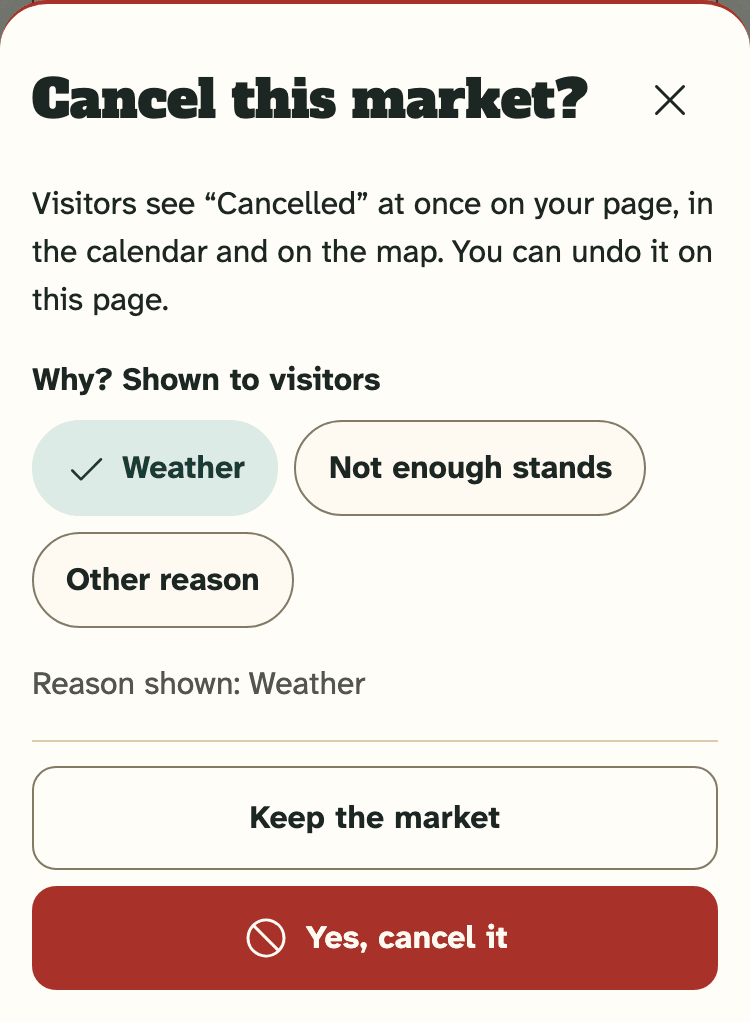
- The reason visitors see
- Yes, cancel it
- Keep the market: nothing changes
Cancelling stops the whole market, all its days. To drop only one day, change the days instead.
On a market with online payment, every maker who paid gets all the money back, booking fee included. Open and waiting-list requests close at once. You get the note “Market cancelled: all payments refunded”. See Refunds.
Cancelled by mistake
Open the market again. The card “This market is cancelled” has Undo the cancellation. Tap it, and the market is back on the calendar.
Undo puts the market back on the calendar, but it does not undo what cancelling did: payments already refunded stay refunded, and open or waiting-list requests stay closed. Makers can send a new request.
New days, a new place or a new name
These changes go to HobbyLux first, so we can check them on an official page.
- In “On your market page now”, tap Change next to Place, Days, Name of the market, Type of market, Organiser or Official page.
- Fill in what is new. For the days you can add, remove or move days.
- Tap Ask for this change. Or tap Keep as is to stop.
- We check it, usually within a few days. You get an email and a note in your inbox.
While we check, the line shows “Change waiting”, and your market page keeps the old details.
If we cannot approve a change, for example because we could not confirm the new days on an official page, your market keeps what it shows now. Send the change again with a link, or write to hello@hobbylux.app.
Take back a change
Changed your mind before we checked? In the card “Waiting for HobbyLux”, tap Withdraw this change. Your page keeps what it shows now.
Still stuck? Write to hello@hobbylux.app